Blacklist a Phone Key or Key Fob
Overview
Use Blacklist Key to add a Phone Key or Key Fob to the system Blacklist.
Before You Begin
Before Blacklisting:
- The Phone Key or Key Fob must be assigned to a Person.
1. Open Blacklist Key
From the SOC Manager Home page, click Blacklist Key.
Once selected, the following form is displayed.
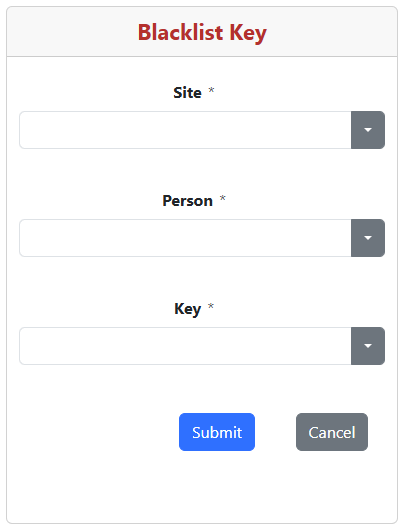
2. Select the Site
Select the Site containing the Key to be Blacklisted.
The Site acts as a filter for the Person list. This prevents you from having to search through a large organization-wide list of people.
3. Select the Person
Select the Person who will who has the Key to be Blacklisted.
Only Persons associated with the selected Site are displayed.
Once a Person is selected, the keys assigned to the Person are listed.
4. Select the Key to be Blacklisted
5. Blacklist the Key
After reviewing the Key Blacklist information, click Submit.
SOC Manager asks you to confirm that you want to Blacklist the key.
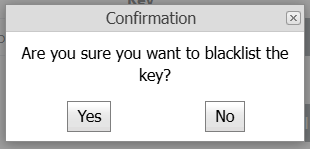
Click Yes to Blacklist Key.
Click No to return to the Blacklist Key screen without Blacklisting.
6. Confirm the Key Was Blacklisted
After the Key is successfully Blacklisted, SOC Manager displays a confirmation message.

If any error messages occur, please contact your Supervisor.
Important
Removing keys from Blacklists can only be done at the factory. Please contact your Supervisor for more information.
Related Topics
- Activating Your Phone Key
- Revoke Phone Key
- View Phone Key Audit
- Manage Persons
- Manage Access Profiles