Issue Phone Key
Overview
Use Issue Phone Key to issue an iLOQ S50 mobile credential to a person's smartphone.
The Phone Key can be assigned one or more Access Profiles and can optionally be configured with an expiration date and time.
Before You Begin
Before issuing a Phone Key:
- The Person must exist in SOC Manager.
- The Person must be associated with the appropriate Site.
- At least one Access Profile must be available for the Site.
- The Person must have a Phone number or an Email address available for delivery of the Phone Key registration and activation messages.
1. Open Issue Phone Key
From the SOC Manager Home page, click Issue Phone Key.
Once selected, the following form is displayed.
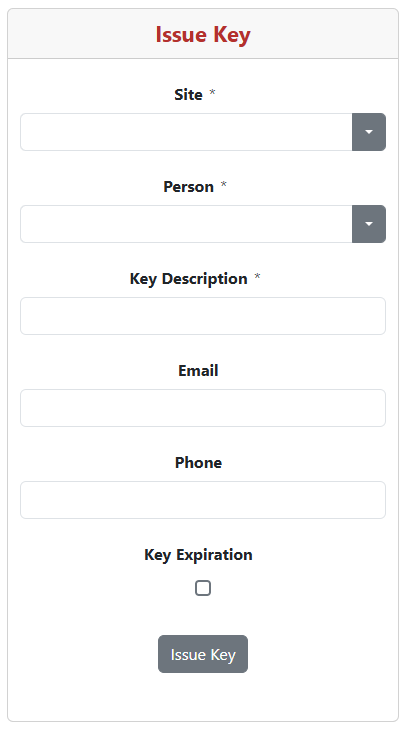
2. Select the Site
Select the Site where the Phone Key will be used.
The Site acts as a filter for the Person list. This prevents you from having to search through a large organization-wide list of people.
3. Select the Person
Select the Person who will receive the Phone Key.
Only Persons associated with the selected Site are displayed.
Selecting All will show all Persons from all Sites.
Once a Person is selected, the available Access Profiles will be displayed.
4. Select the Access Profile
Access Profiles determine what locks the Person will be able to open.
Select one or more Access Profiles for the Phone Key.
5. Enter the Key Information
Enter a Key Description. The Key Description is required and should help identify the purpose or owner of the key.
The Phone number is retrieved from the selected Person's record.
An Email address is optional. However, either a Phone number or Email address must be available because SOC Manager uses this information to determine how the Phone Key registration and activation messages are delivered.
Delivery Method
If a Phone number is present, registration and activation messages are sent by SMS.
If no Phone number is present and an Email address is provided, registration and activation messages are sent by email.
If both a Phone number and Email address are present, SMS takes priority.
6. Set Key Expiration
Key expiration is optional.
To have the Phone Key automatically expire, select Key Expiration.
SOC Manager displays the additional expiration settings:
- Date & Time: Enter the date and time when the Phone Key will expire.
- Time Zone: Select the time zone that applies to the specified expiration date and time.
You can select the appropriate time zone from the list or click Pick Time Zone on Map.
If Key Expiration is not selected, no expiration date and time is assigned to the Phone Key.
7. Issue the Phone Key
After reviewing the Phone Key information, click Issue Key.
SOC Manager asks you to confirm that you want to issue the key.
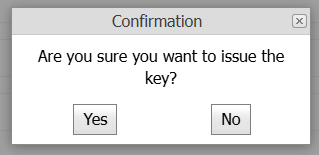
Click Yes to issue the Phone Key.
Click No to return to the Issue Key screen without issuing the key.
8. Confirm the Key Was Issued
After the Phone Key is successfully issued, SOC Manager displays a confirmation message.

Allow 3-5 minutes for the key issuance to take effect.
Click Return Home to return to the SOC Manager Home page.
What Happens Next?
SOC Manager submits the Phone Key for issuance.
The recipient receives the registration and activation information using the delivery method determined when the key was issued:
- SMS when a Phone number is available.
- Email when no Phone number is available and an Email address is provided.
- When both are available, SMS is used.
The recipient must then complete the registration and activation process on their smartphone.
For instructions, see Activating Your Phone Key.
Related Topics
- Activating Your Phone Key
- Revoke Phone Key
- View Phone Key Audit
- Manage Persons
- Manage Access Profiles